How to check which graphics card is installed on a Windows PC
Windows users can identify their GPU using built-in tools such as Task Manager, Device Manager and the DirectX Diagnostic Tool. Some laptops use both integrated and dedicated graphics, and GPU 0 in Task Manager is not necessarily the more powerful card.
Main event
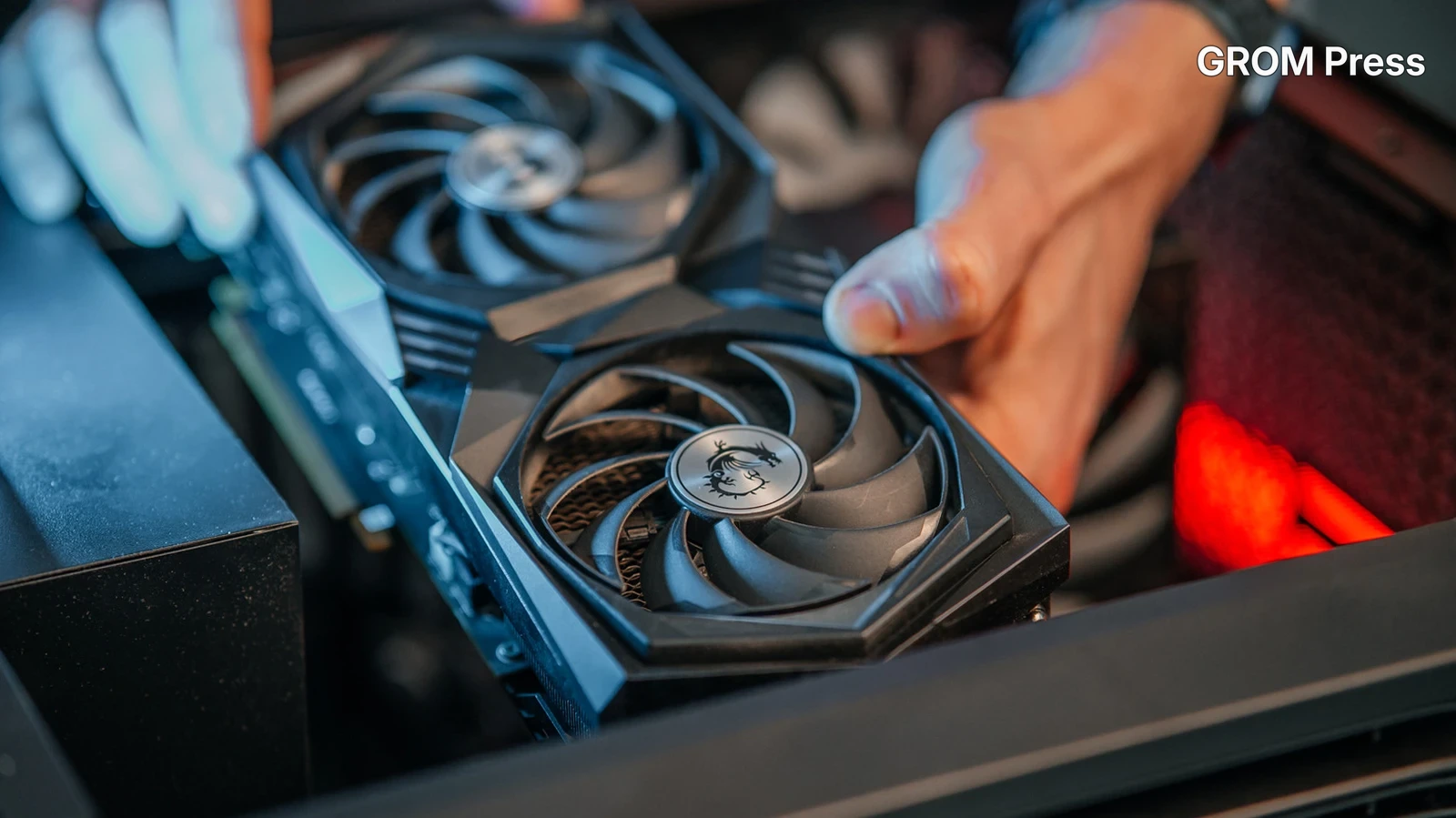
Windows provides several built-in ways to check which graphics processor is installed in a PC, without opening the case or installing extra software. The guide covers Task Manager, Device Manager and the DirectX Diagnostic Tool.
Details
Task Manager is described as the fastest method. Its Performance section shows the graphics card name, memory, driver information, current workload and, where supported, GPU temperature. It also lists dedicated and shared GPU memory. Dedicated memory usually means VRAM on a dedicated GPU, while shared memory is system RAM borrowed by the GPU. Some integrated GPUs reserve part of system RAM for graphics, which Windows may report as dedicated memory even though the integrated processor mainly relies on system RAM.
The guide warns that GPU numbering in Task Manager does not indicate performance. GPU 0 is not always the more powerful card or the one running games; Windows labels GPUs according to hardware location.
Read the full story on GROM.PRESS
Source: GROM.PRESS